
Setup guide / Claude
 Setup guide / Claude
Offscreen setup
in Claude.
Open now in ChatGPT and Claude. Say "Offscreen, make me a yard sign."
Watch the demo01Use your own Claude account.
Use your own Claude account. Offscreen is open to everyone.
02Add the custom connector.
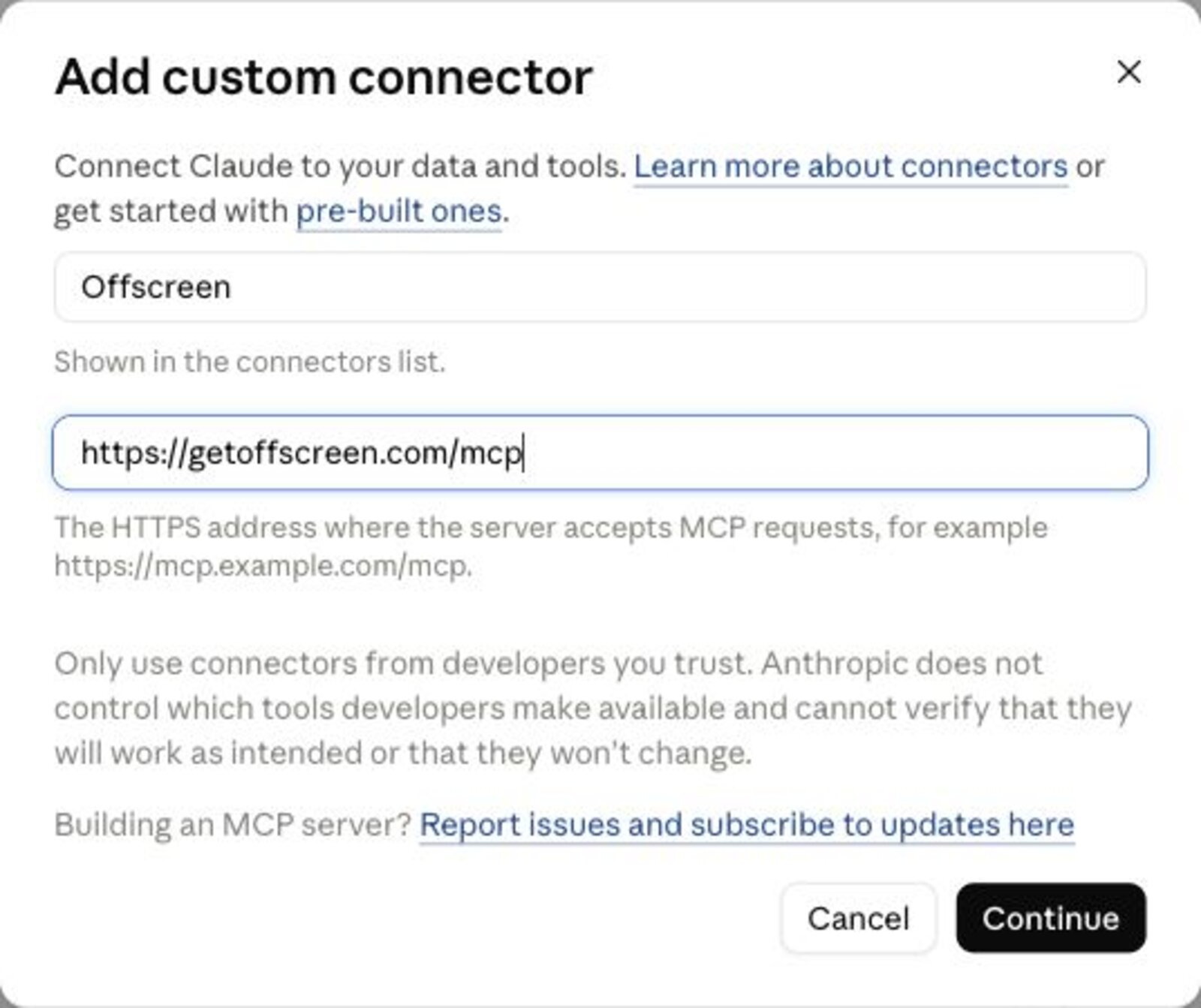
In Claude, open Customize, then Connectors, choose Add, then Add custom connector. Name it Offscreen and paste the connector address:
Connector address
https://getoffscreen.com/mcpThen choose Continue.
03Sign in to Offscreen.
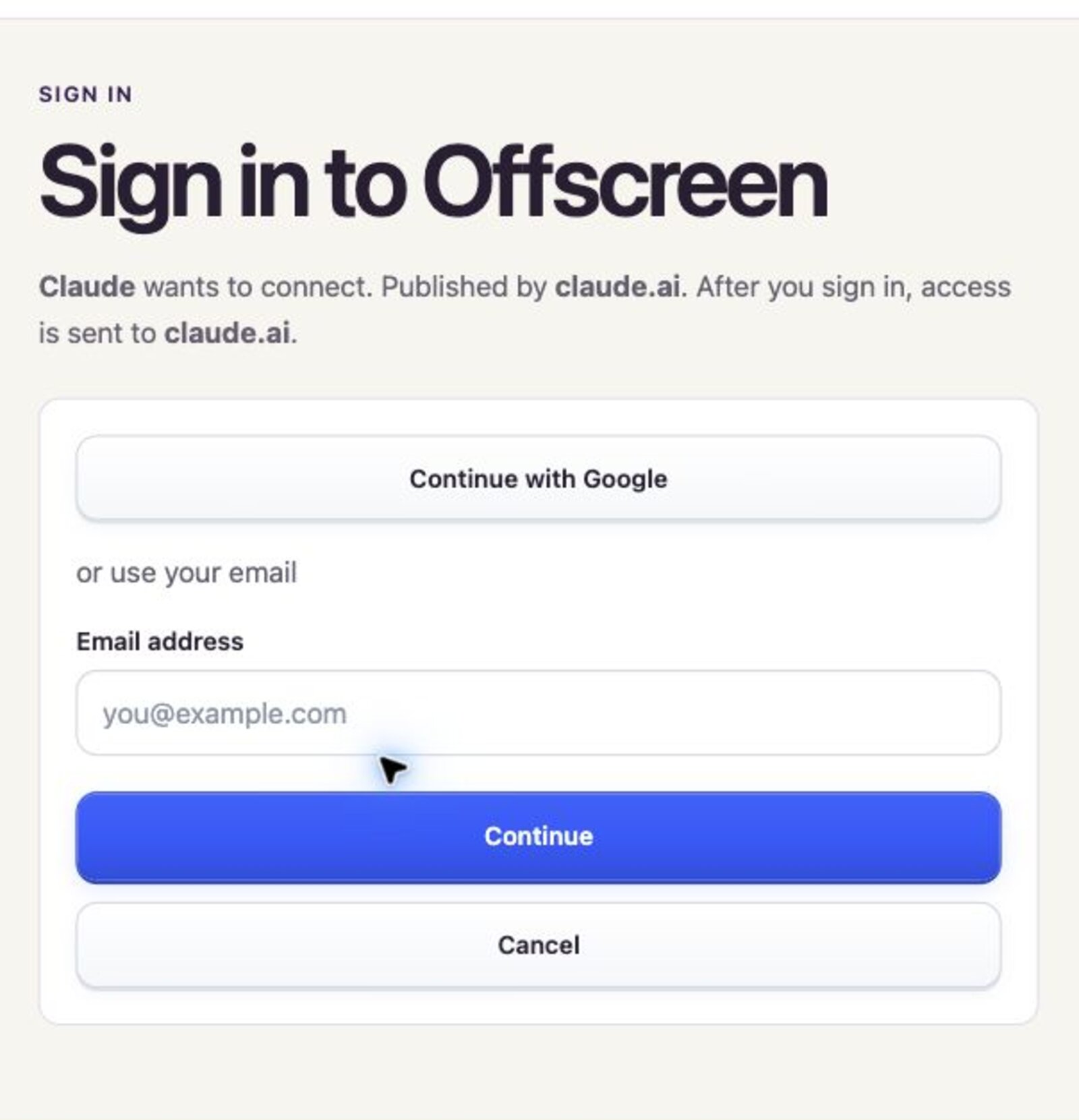
Claude opens the Offscreen sign-in page. Choose Continue with Google, or type your email and we email you a code. Then Claude brings you back.
In Connectors, Offscreen now shows as connected.

04Start a connected chat.
Start a new chat and make sure Offscreen is switched on in the tools menu. Claude asks your permission the first time Offscreen needs to act. Review the action before you allow it.
05Say the phrase.
The quickest start is one line: "Offscreen, make me a yard sign." Or paste the starter prompt below for the full catalog and a few designs.

Offscreen, make me a yard sign. Show me the Offscreen catalog. Then make an 18 by 24 inch yard sign for my business and show me a few designs and the price for 10. Do not start an order. Design with the Offscreen tools: get_design_guide, check_design, create_proof. Do not generate a picture of the sign; the proof is the design.
What you should see: a prompt to sign in to Offscreen, followed by the catalog. Add your business details to see up to four yard sign designs to choose from, then your proof and a price estimate in the chat. This starter prompt does not place an order. When you are ready, approve your design and follow the checkout link to review the total, including shipping and tax, before you pay.
After an Offscreen update.
Both ChatGPT and Claude keep a copy of Offscreen's tool list from the day you connected. When we tell you the tools changed, refresh that copy or your assistant will say a feature does not exist.
In Claude: remove the Offscreen connector in Settings, Connectors, and add it again from the same link; your sign-in and saved business are kept.
Something not connecting?
Where is the connector address?
The connector address is shown in step 02 above: https://getoffscreen.com/mcp.
My account cannot add a connector.
Check that you are using your own Claude account. If it still cannot add a connector, email hello@GetOffscreen.com.
The connection gives an error.
Confirm that you used the connector address https://getoffscreen.com/mcp and your own account. Email hello@GetOffscreen.com with the error message. Do not send passwords or keys.
How do I order my signs?
Customers can design and order all eleven products in ChatGPT or Claude: yard signs, truck magnets, door hangers, flyers, business cards, QR review cards, vinyl banners, postcards, rack cards, die cut vinyl labels, and adhesive vinyl decals. Pick from up to four designs, review your proof and price estimate in the chat, then approve the design and pay on an Offscreen checkout page. Shipping and tax are shown before you pay. We print and ship your approved order. Every sign, magnet, door hanger, postcard, banner, decal, label, rack card and review card carries a scan code to your business page. Ask Offscreen for the catalog to see sizes and options.
Need a hand? Email hello@GetOffscreen.com.